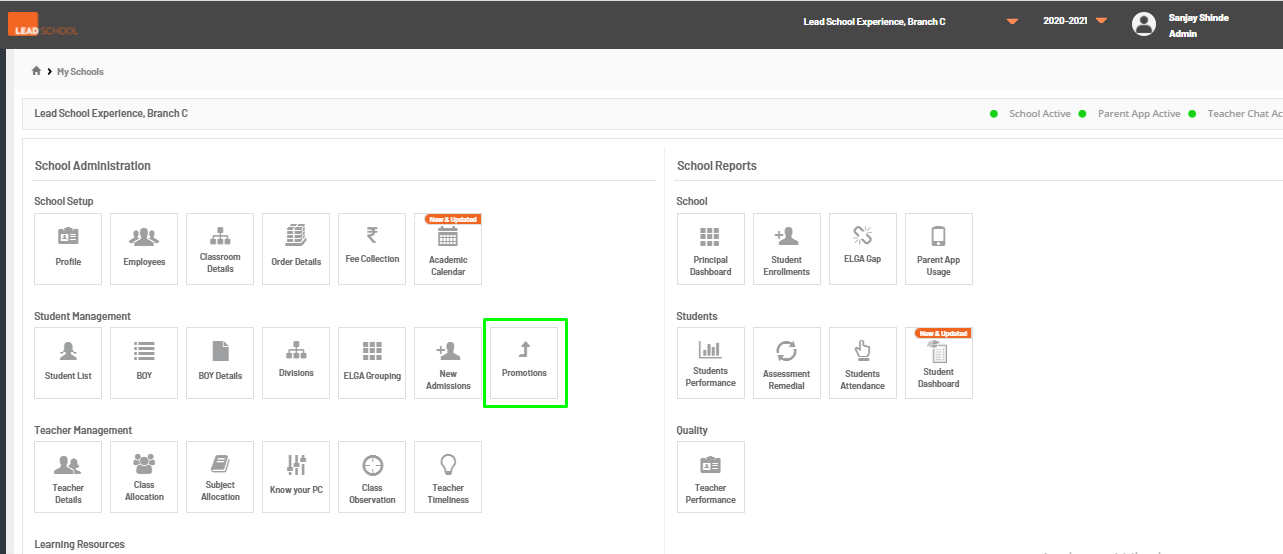
- On the Nucleus dashboard under the Student Management section, click Promotions option to access it.
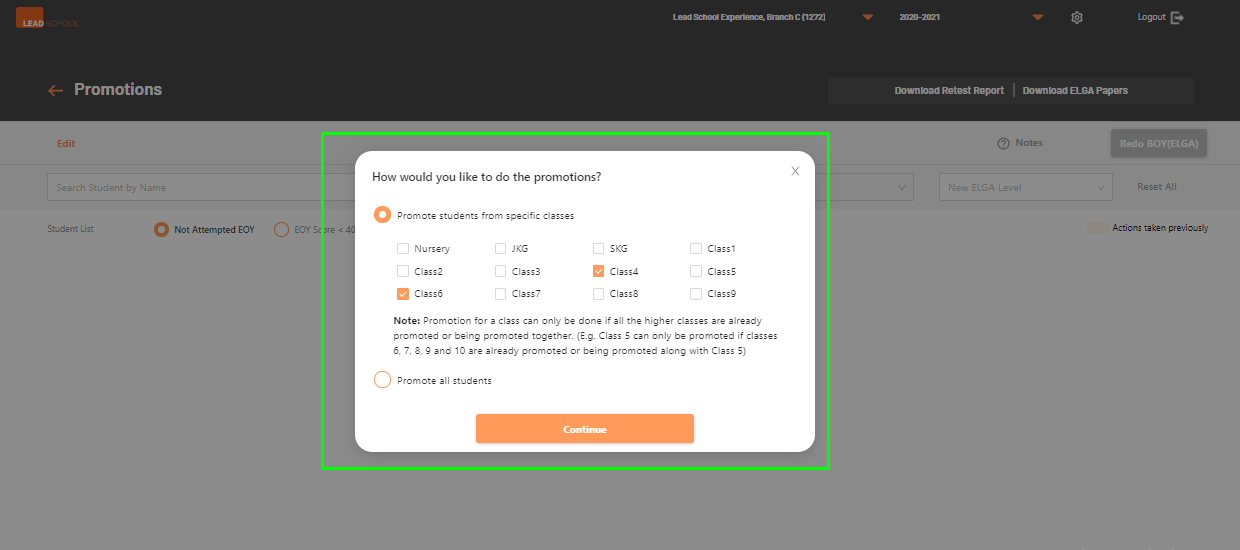
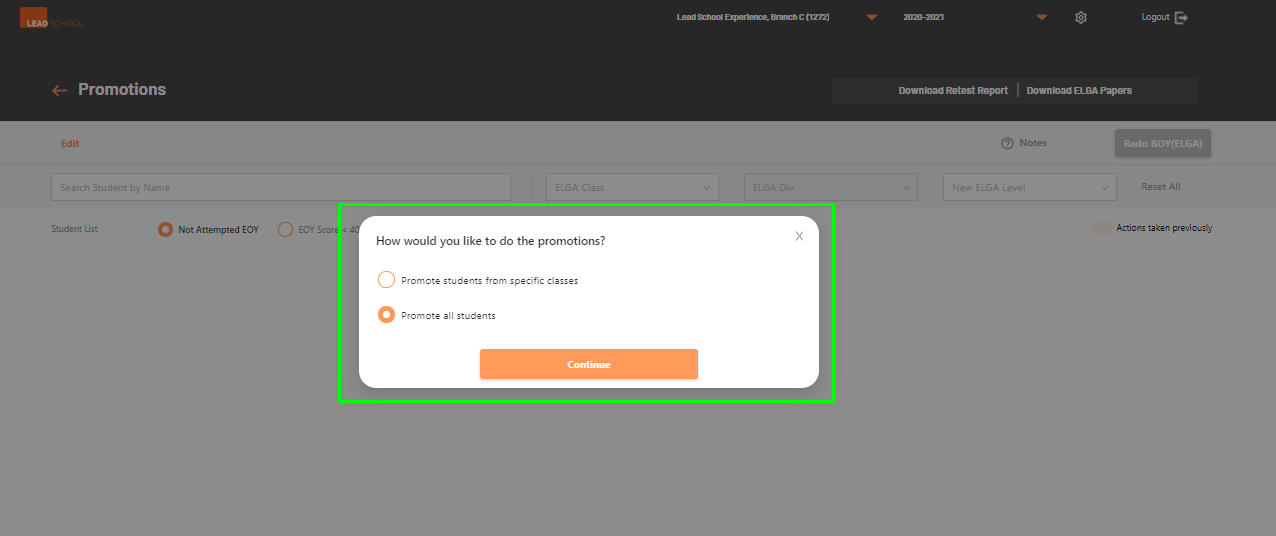
- When you open the module, it will prompt you to select specific classes to promote students from or else select all classes to promote. Select any option as per your preference.
- Specific classes option will show you all classes available for the schools. You can select the classes from the list. However please note that promotions for a class is only allowed if all the higher classes are also selected in the list or else already promoted.
- Selecting Promote all students option will start the process to promote all students in the school.
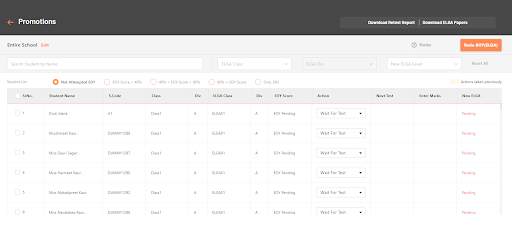
- Based on the student selection, it will show all active students for the ELGA promotions.
- School users can change the class selection for promotions by clicking on the Edit button on the top left corner.
- You can also search students by name or filter the student list using current ELGA level and division or new ELGA level.
- You can also filter the student list by students who have not attempted the ELGA EOY assessments or based on student’s ELGA EOY scores. You can also select SKG students separately for the promotion using this filter option.
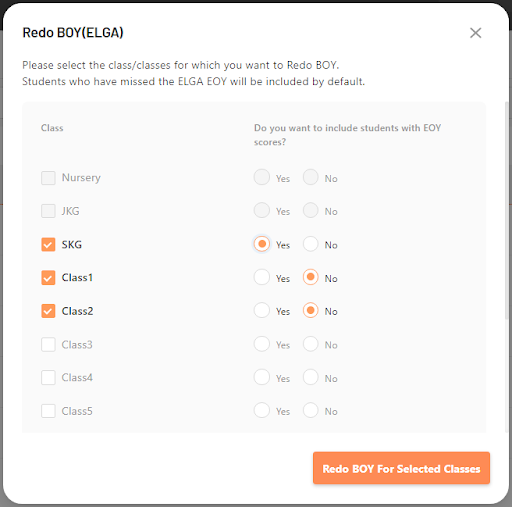
- If a school wants to take ELGA BOY assessments for the students in the next academic year, they can click the Redo BOY option. In this case, the students will be eligible to attempt ELGA BOY in the next academic year.
- Here school users can select the classes from the list, where the bulk action for ‘REDO BOY’ needs to be taken. They can also select whether they want to include/ exclude students from the selected classes who have the EOY scores available.
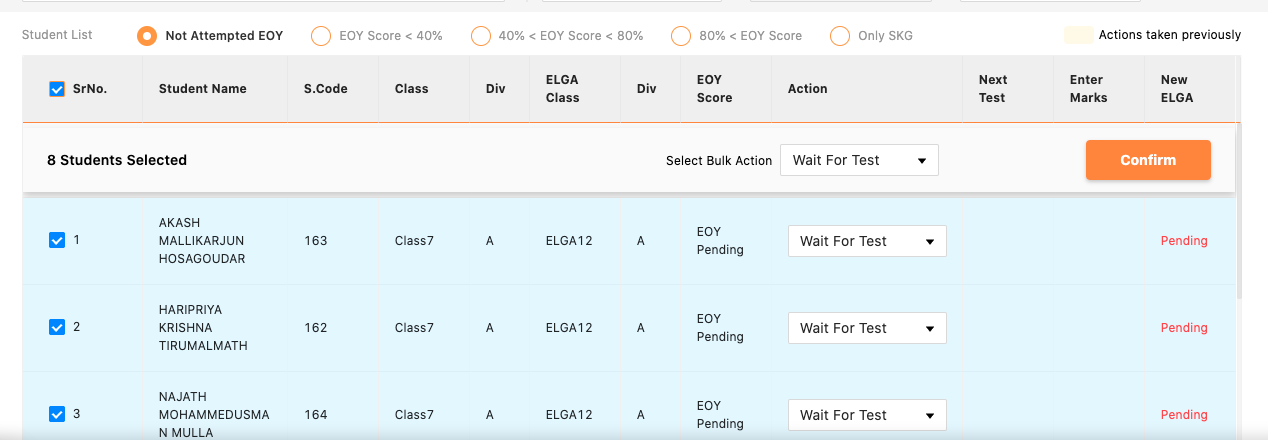
- On the ELGA promotions page the user will also have the option to multi-select students and make a bulk decision.
- Students are already grouped together based on their EOY assessment scores and status. Select any group to confirm the ELGA promotion decision.
- Select appropriate Action from the drop down menu next to the student name to confirm the status.
- You can also select multiple students at once and then select the same action in bulk for all selected students.
- Or else select all students by clicking the check mark option from the top left side next to the Sr. No option. Then select the bulk action for all students in that group and click Confirm.
- Follow the same steps for all students in other groups as well.
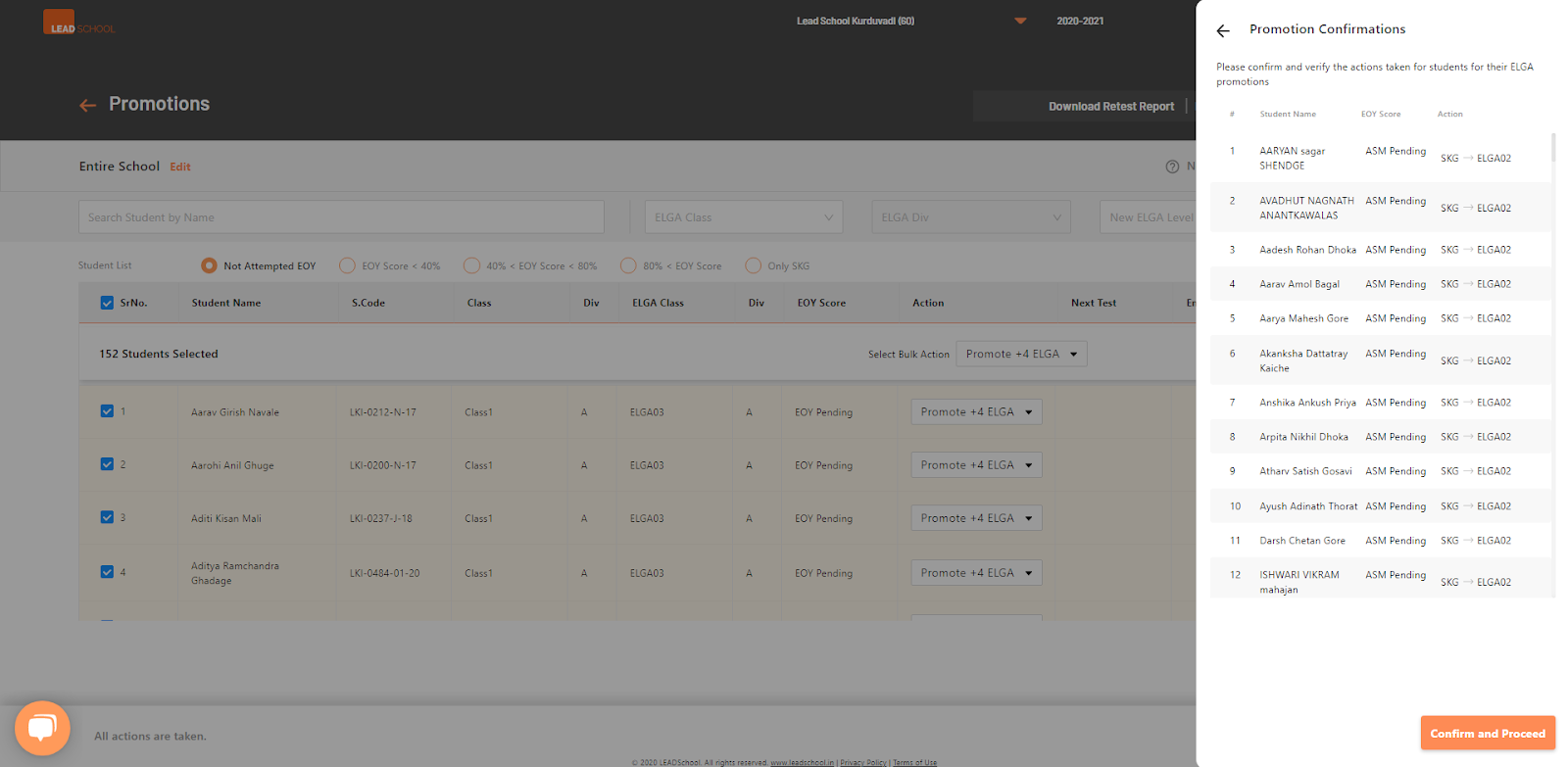
- Once all students are prompted, click the ‘Proceed to promotion confirmation’ button. This will give you a quick summary of the.ELGA promotion to review. Click back if you want to make any changes otherwise click Confirm and proceed button to lock the ELGA promotions and proceed to the next step.
- Once ELGA level promotion is confirmed, school users will have to confirm class level promotions for all students confirmed for the promotions.
- By default all students are set to Promote to next grade. However school users can also change the status for one or more students from TC (Student left the school) and else Repeat (to repeat the same class again in the next academic year).
- School users can search students by name or filter student lists by Class or division to find students for changes.
- Click on the Confirm Promotions button to complete the promotions.
- It will show a list of students whose status was changed by school users. Click the Confirm and proceed button.
- Now school users will be redirected to the Nucleus dashboard page.
- To complete the promotion process and view next academic year, log out from the Nucleus & log in again. The new academic year will be selected on top right side next to the school name.
- Click Notes option to view detailed ELGA promotion logic.
Pramotions