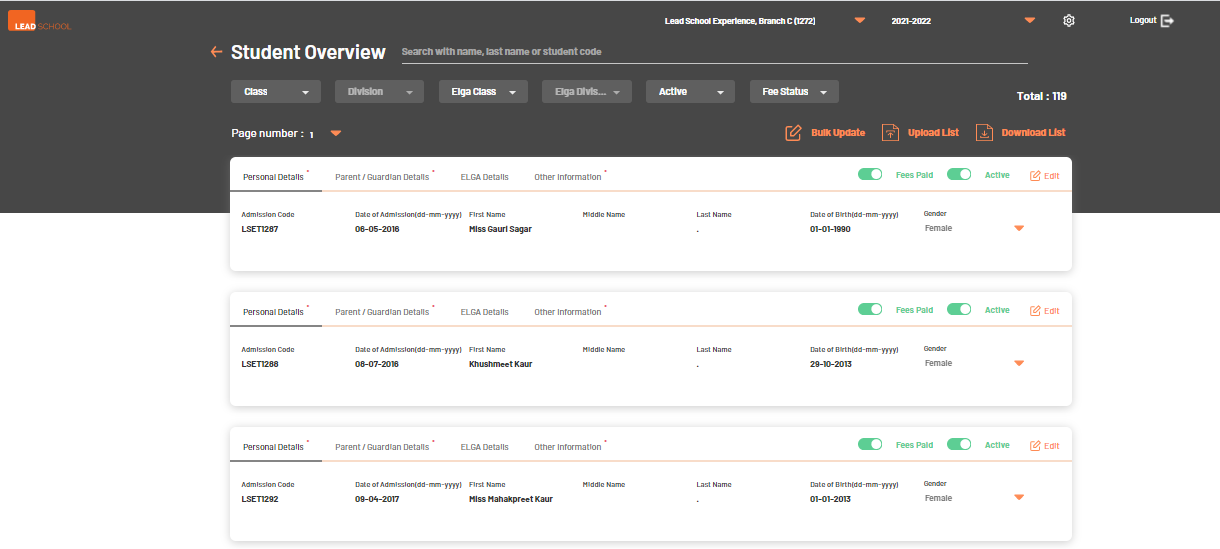
To view, edit and add students, School can Navigate School Administration →
Student Management → Student List. From this option, School can edit already available students or add students manually.
If required, School can also upload multiple students at once.
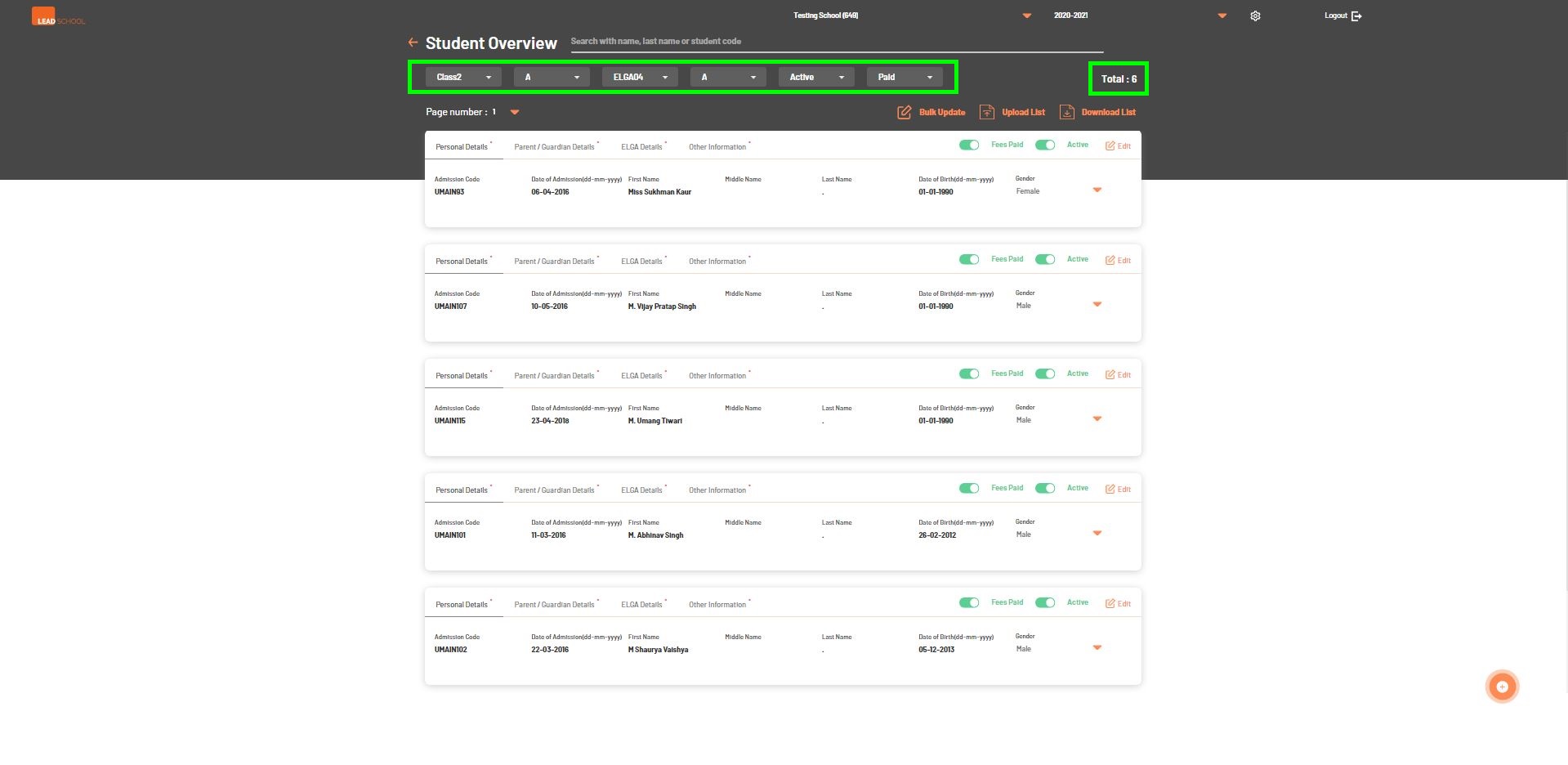
School can also search already uploaded students from this screen. Type Student code or
Student's first name / last name in the highlighted area and press Enter key from the keyboard. It will show the result below.
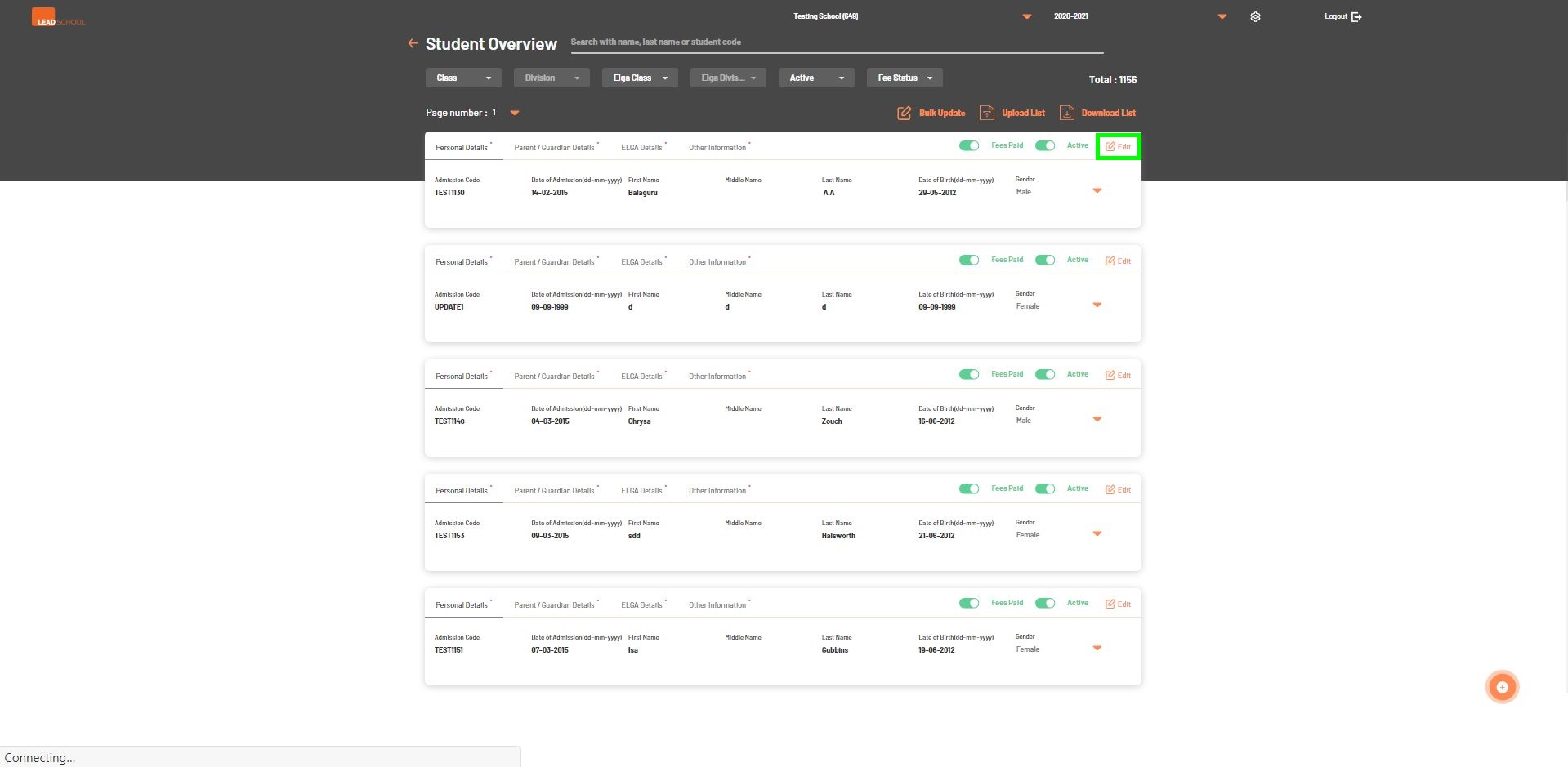
To edit a particular student from the list, click Edit option next to the student details
Schools can edit Admission code, Date of admission, Student name, Date of birth and gender from the Personal Details tab.
To view, change or add parent details, click on the Parent/Guardian Details tab.
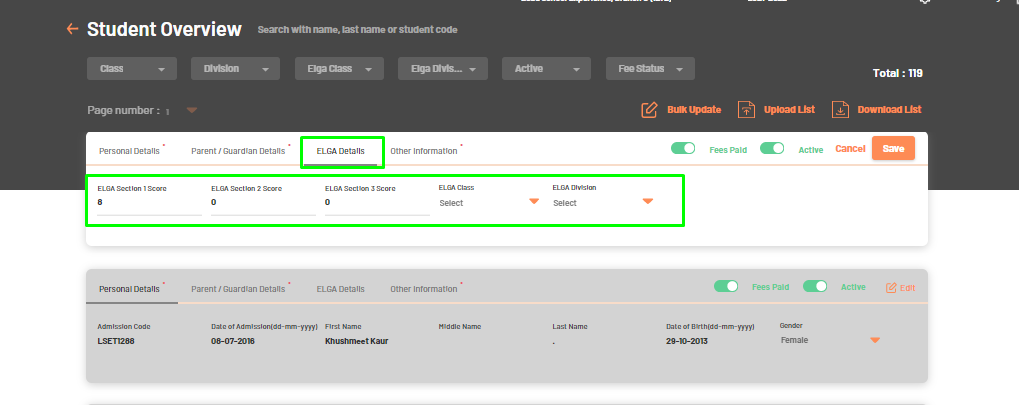
To view ELGA scores or to change ELGA class, click the ELGA Details tab
To edit a particular student from the list, click Edit option next to the student details.
School can edit Admission code, Date of admission, Student name, Date of birth and gender from the Personal Details tab.
To view, change or add parent details, click the Parent/Guardian Details tab.
To view ELGA scores or to change ELGA class, click the ELGA Details tab
To change Student's classroom or change any other details such as address, blood group etc, click the Other Information tab.
Click Save to save all changes.
School’s excellence manager also has access to create a new ELGA level and move students to the new ELGA level even after the initial
ELGA grouping is done (up to the maximum ELGA permissible basis the regular class of the student).
On the student’s card and Navigate to the ELGA details page.
To edit a particular student from the list, click Edit option next to the student details.
Click on the ELGA drop-down menu to view available ELGA levels. If ELGA level is not created,
you would see Create next to the ELGA level on the drop-down menu.
Click on Save to create a new ELGA level & move student to the mentioned ELGA level.
If no additional classrooms are available to create a new ELGA level, you will get below mentioned pop-up message.
Click on the Add Classroom page to add a new division from the Classroom setup page.
Once you create a new division you will be able to create a new ELGA level by clicking the Save button.
Newly created ELGA level will be visible in the ELGA grouping result page as well.
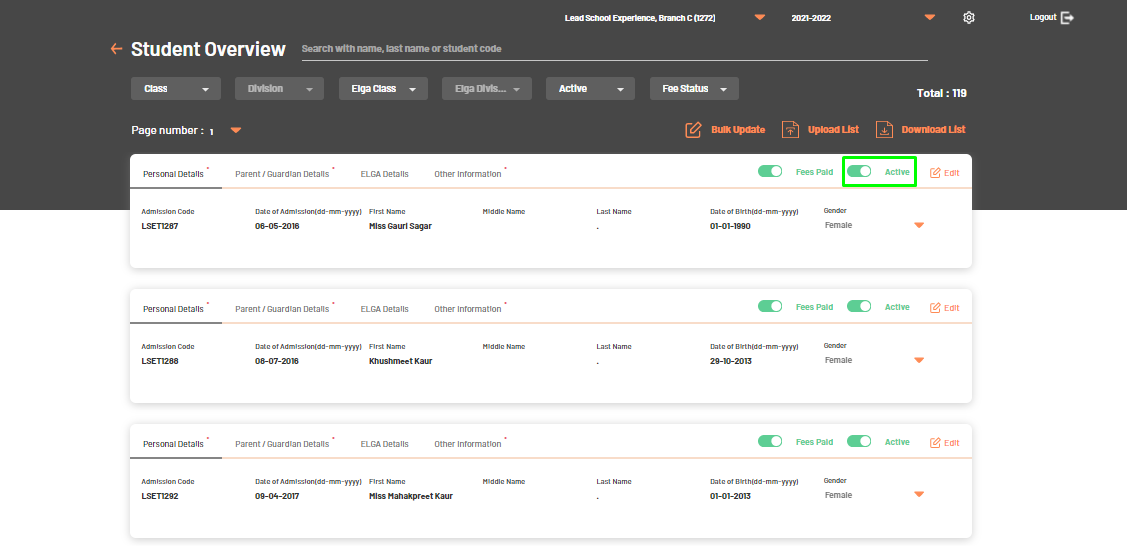
School cannot delete any student data but they can inactivate a particular student by
clicking the Active Button highlighted below. Once deactivated, the student name will go at bottom of the list.
School can also mark Fees paid status of any student using the below option.
By default all student's Fees Paid option is enabled. However school can toggle Fees Paid option by clicking it.
It will not make the student inactive however, the student won't get any future notifications on the Parent app.
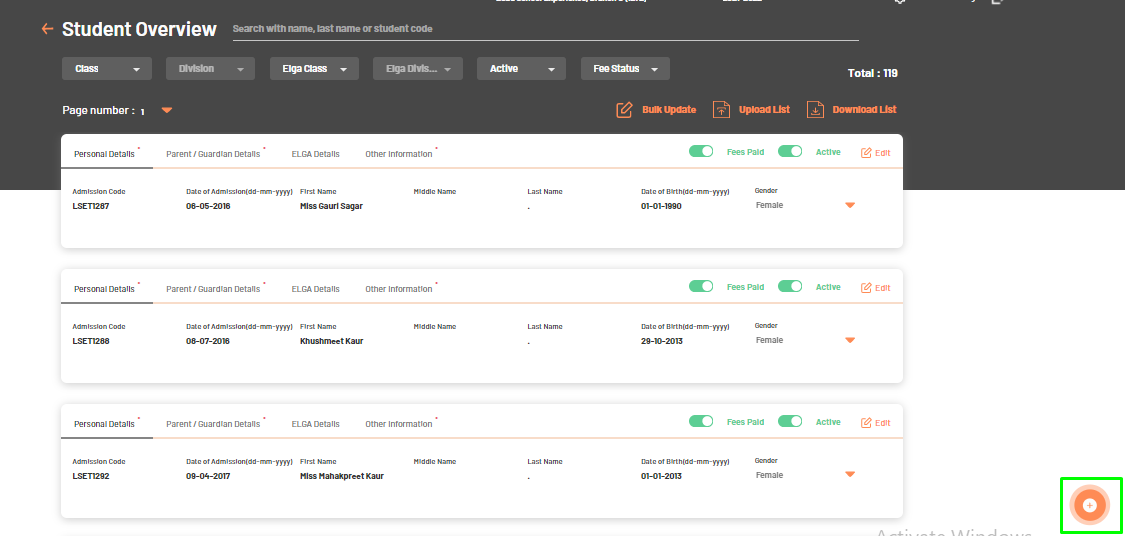
To add a student, click + icon on the bottom of the screen as highlighted below.
Enter student details such as student name, admission code, Date of birth,
ELGA scores and desired classroom. Then click Save to add the student to the list.
Note: different tabs Personal Details, Parent/Guardian Details,
ELGA details and Other Information to fill in all required details.
Schools can also upload multiple students at once. To upload multiple students at once,
click the Upload List button and follow onscreen instructions to download sample files and upload data.
For more information, you can refer to the Add Students module.
To download all student’s data click the Download List button. It will download an excel file with all student information.
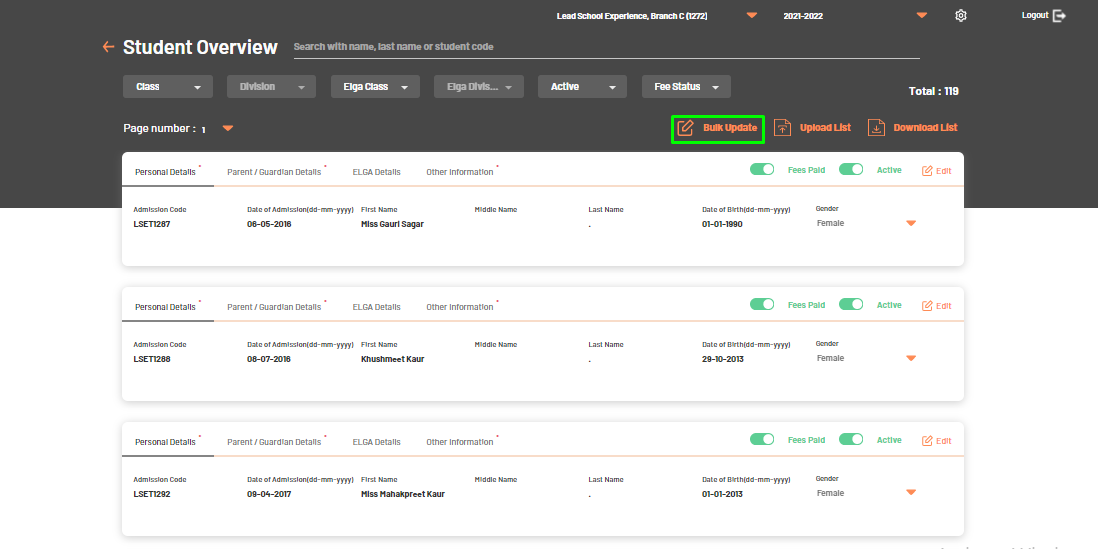
Schools can change the Fees Paid status of all students at once by clicking the Bulk Upload option mentioned below.
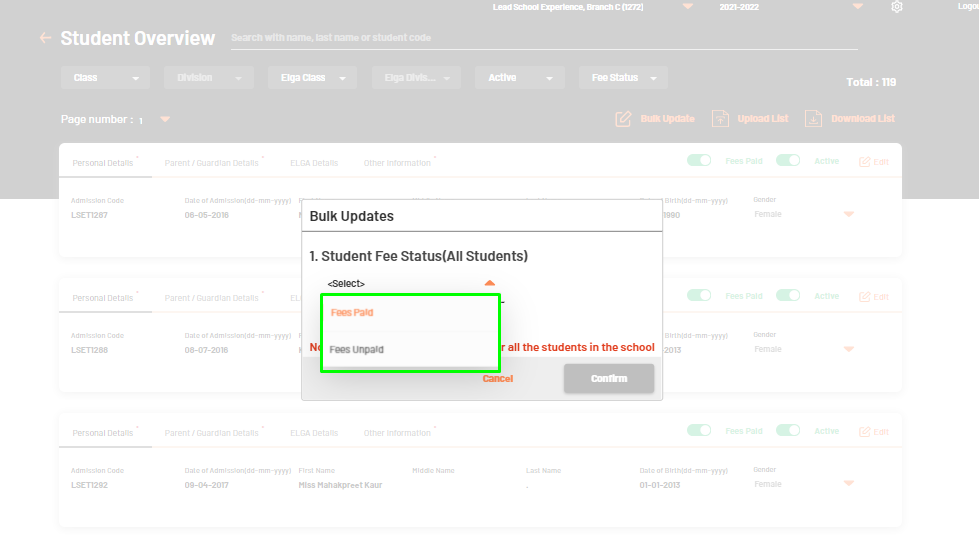
Clicking Bulk Upload option will open a window as shown below. Schools can select Fees Paid or Fees Unpaid option based on their requirement
and click Confirm. Any changes done using this option will be applied to all students in the school.