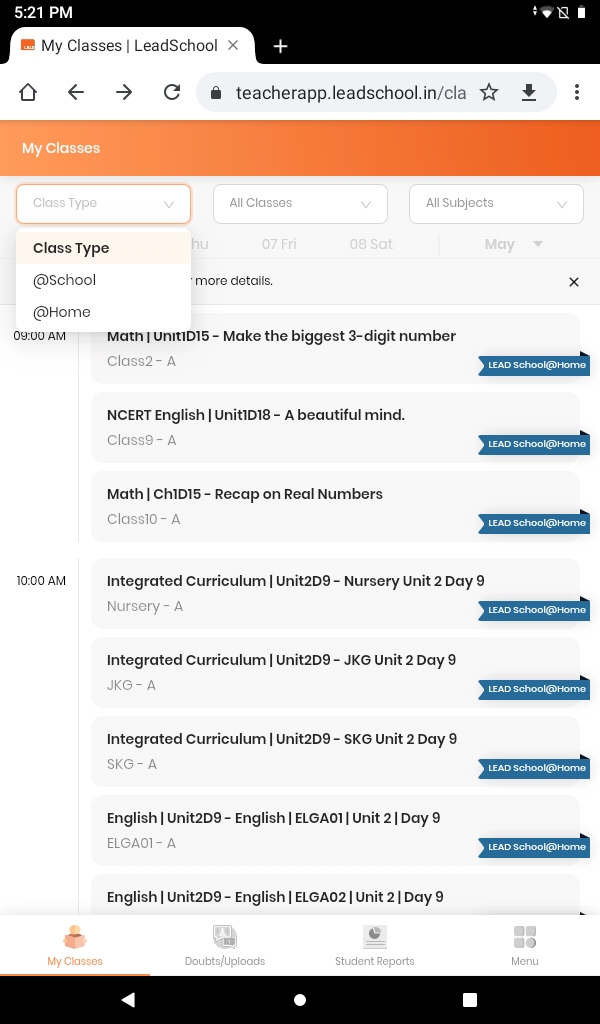
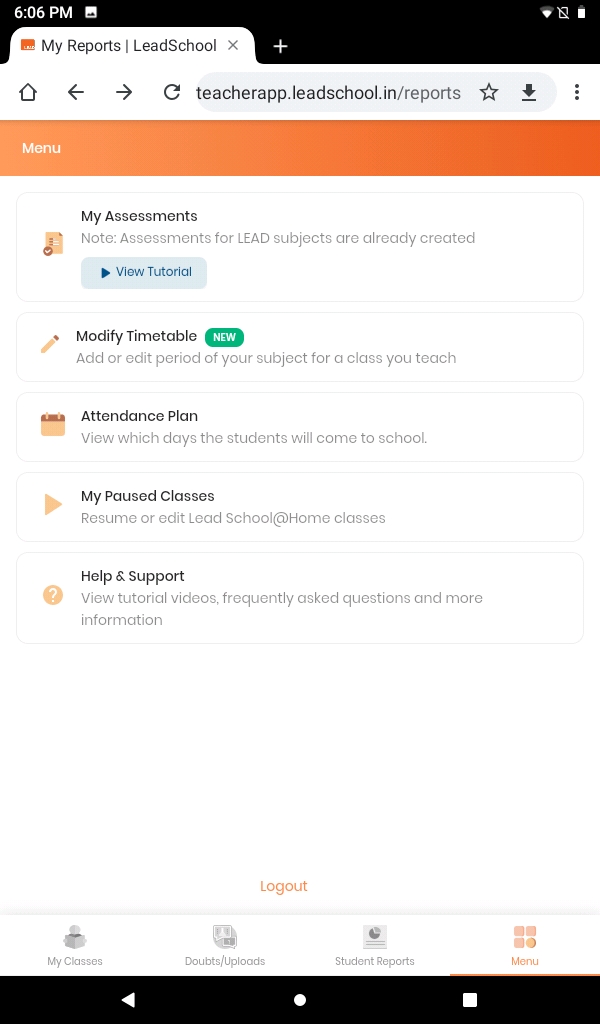
Getting started - After successful login and completion of tutorial. We have landed on the Homepage of the Teacher Mobile App.
By default all classes will be shown on the screen.
Step 1:From the top right corner first we have Class Type selection where Teachers can select from @School or @Home classes.
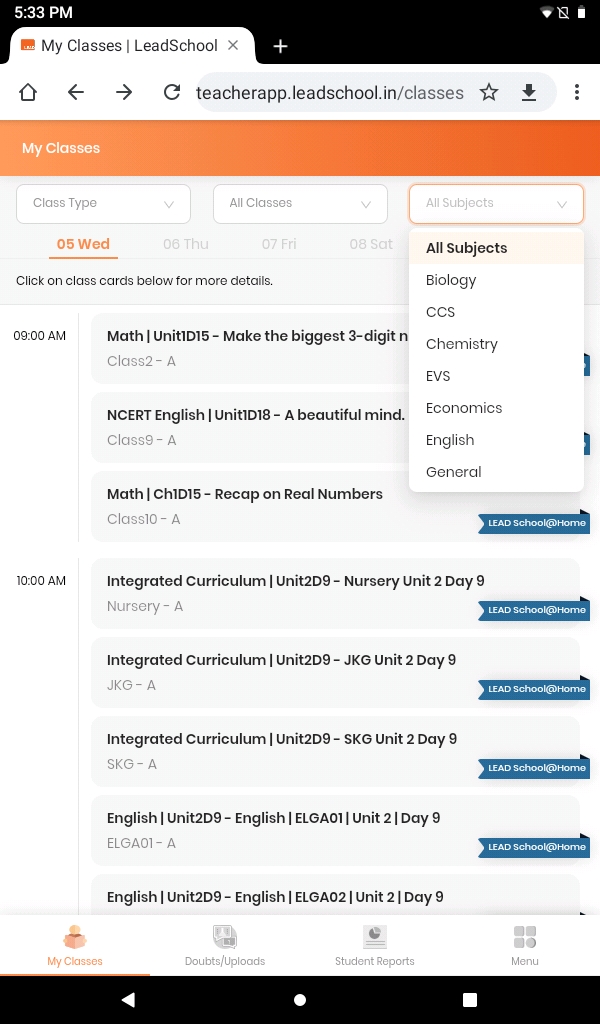
Step 2:From the top right corner second we have Class selection where Teachers can select from classes assigned by principle.
Step 3:From the top right corner third we have Subject selection where Teachers can select from classes assigned by principle
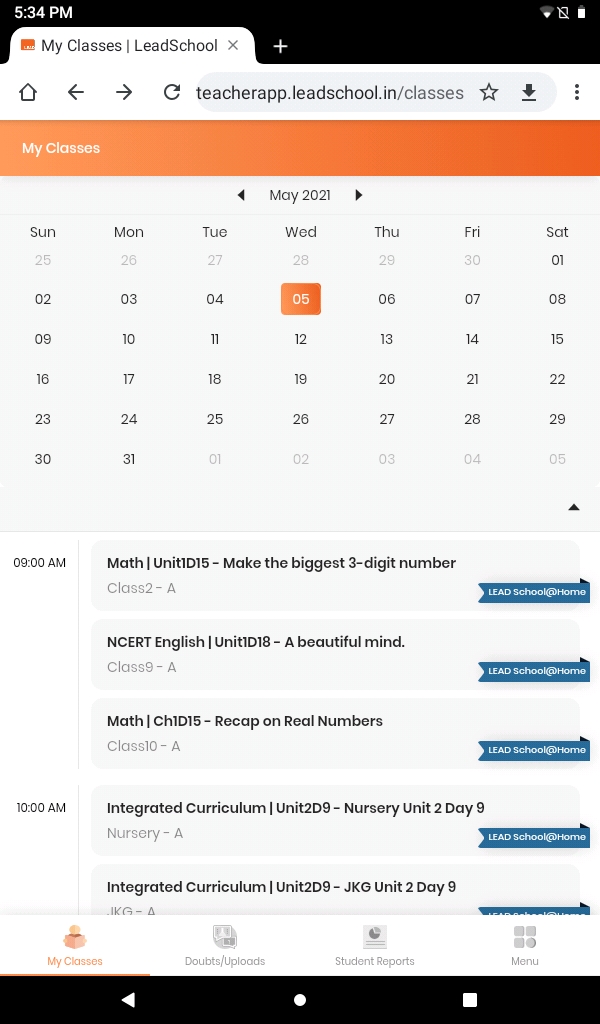
Step 4:Click on the date if you want to check the future classes or you can click on the down icon which will give you a monthly calendar view to select your date.
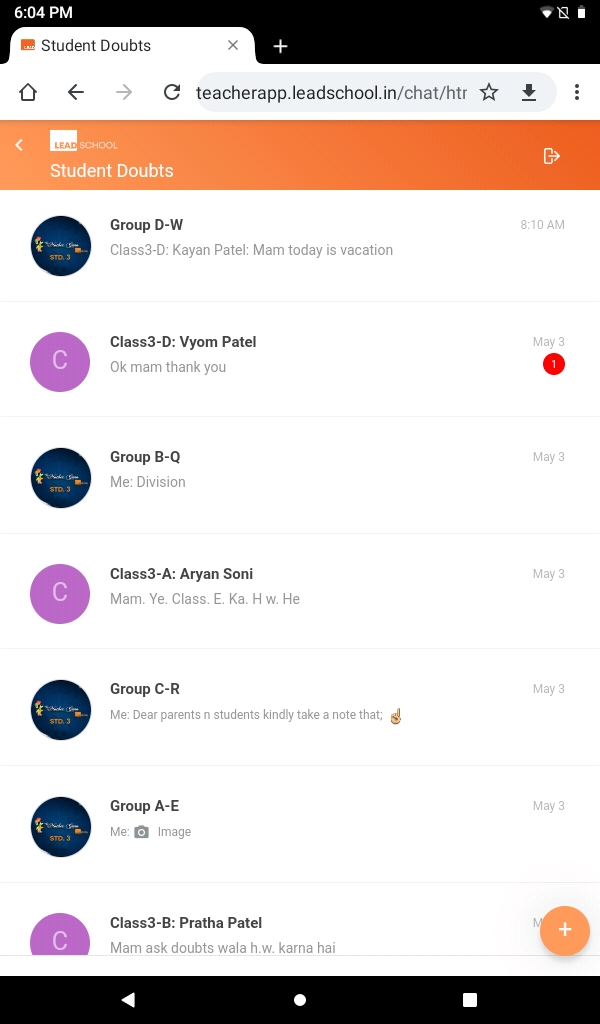
Step 5:Second on the bottom we have Doubt/Uploads. Where teachers can chat with students. Teachers can also create chat groups as well with selective students by clicking on Create New Group.
Step 6: Reports is the third option available in the bottom where all students reports will be available to see student progress.
Step 7:Last option is the Menu option where you have Assessment, Attendance and Help & Support option