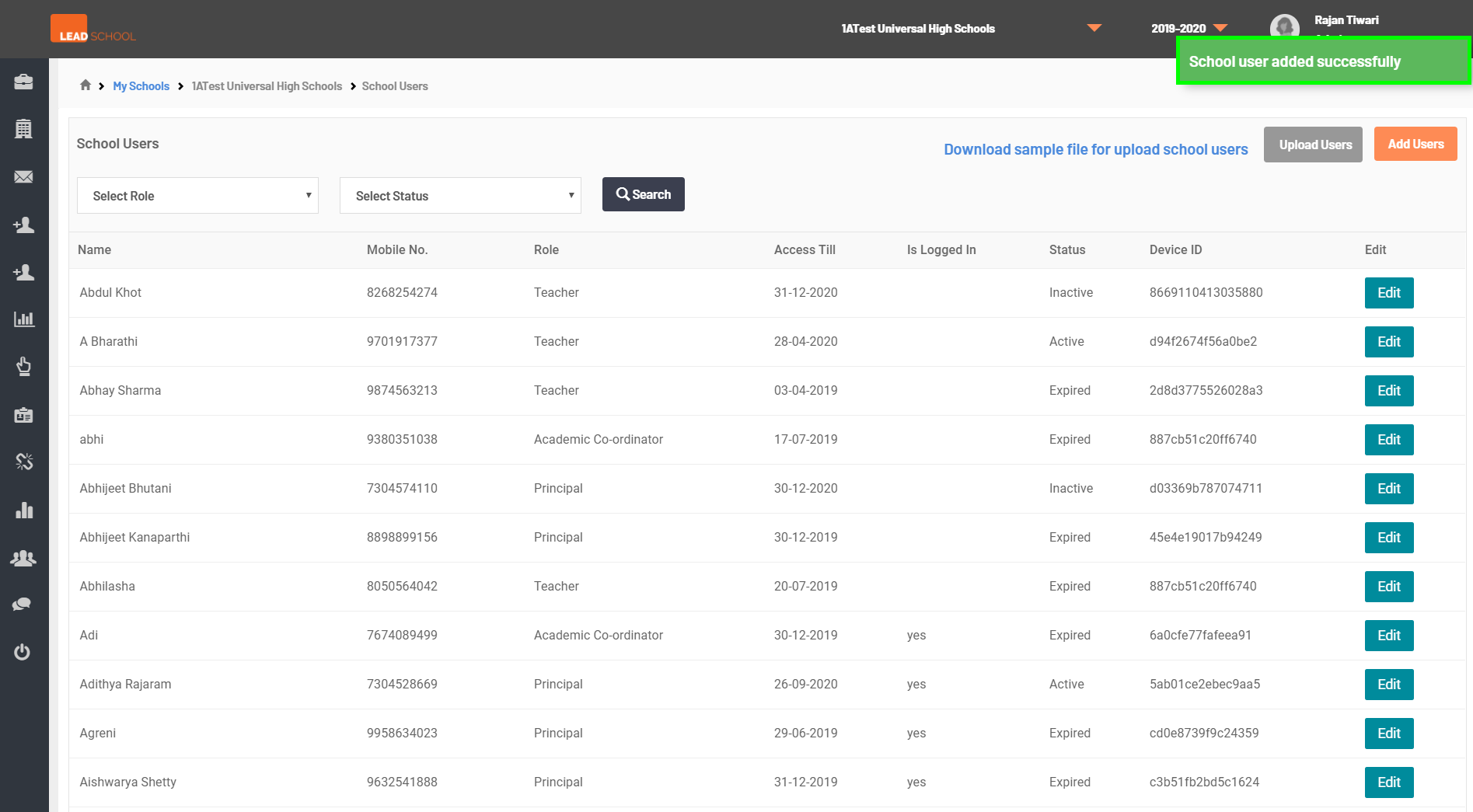
A school can view, edit and add users by navigating to School Administration → School → Employees. These Users are mostly school principals, teachers, academic coordinators, school correspondents, sales managers, and AEMs.
Click Add User to create a new user. Then enter all required details and click Submit.
Step 1: Go to Employees tab
Step 2: Click on Add User button
Step 3: Enter the users details and click on Submit button
Step 4: Once data is saved, User will get School user add successfully message
By clicking Download sample file for upload school users, the school can download the file to update multiple users at once. Once downloaded, the school will need to update user details in excel and save it.
To upload multiple users’ data, the school can click on the Upload Users button, navigate to the updated sample file and click on Open.
The school can filter the users’ data using Select Role and Select Status option and clicking on the Search button.
The school can also edit already created user details by clicking Edit which is next to the username. Note: A school cannot change the mobile number of the users.