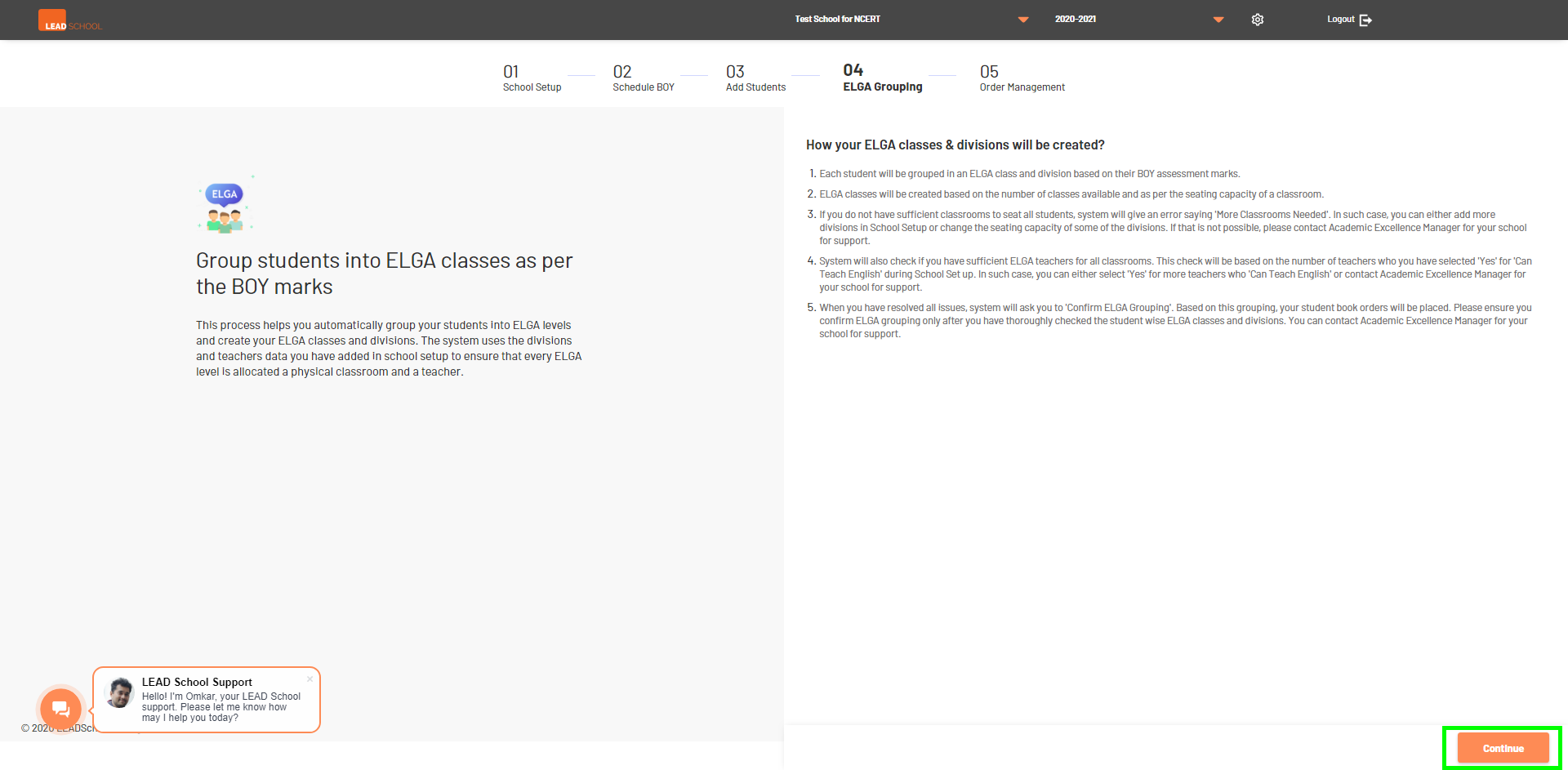
Based on the BOY scores which school updated to student data (uploaded in the previous step and classroom allocation and teacher details school updated in school setup, the system will create the ELGA classes automatically and assign the students and teachers to each class. Click Continue to start the process.
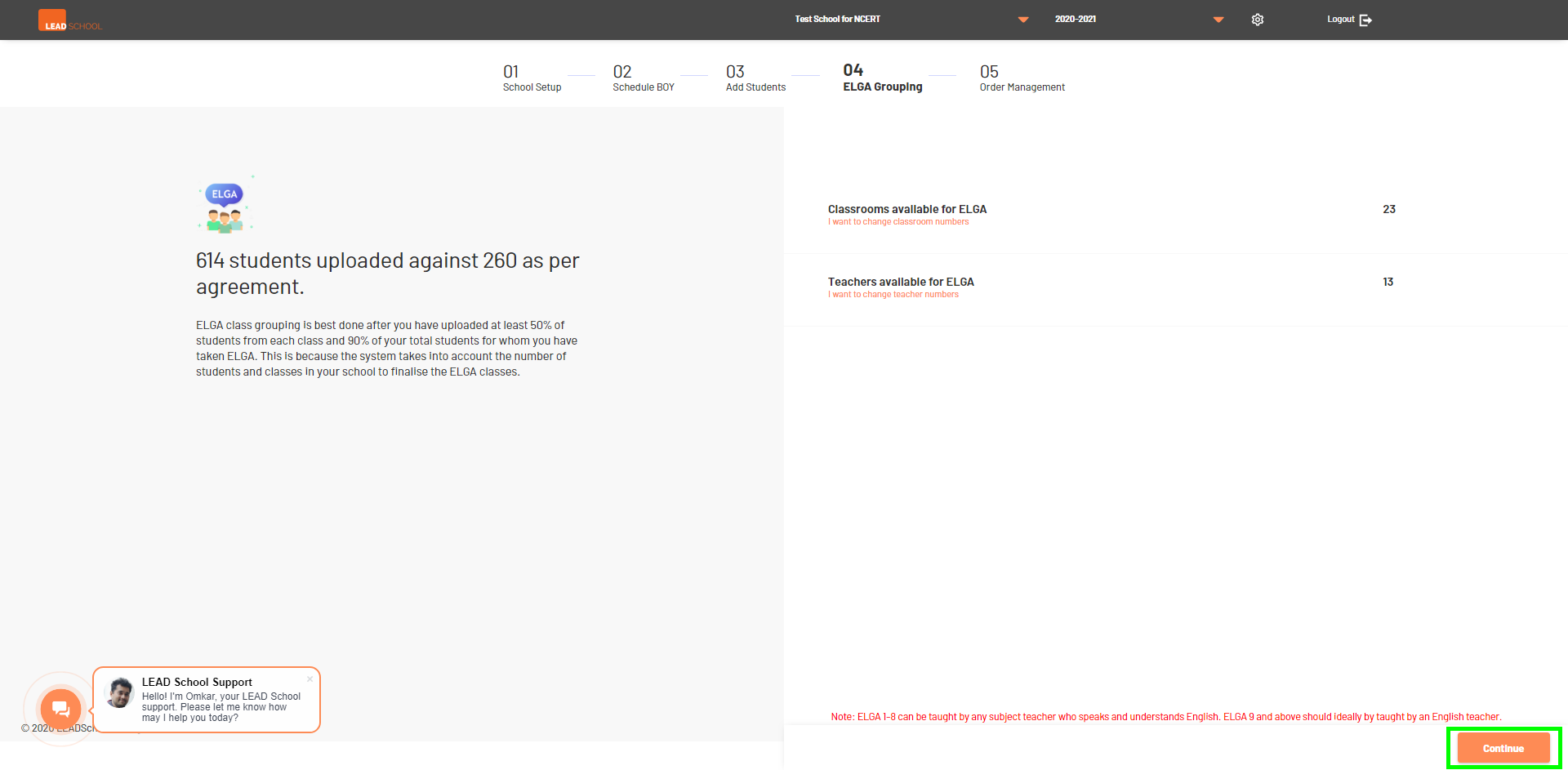
ELGA class grouping is best done after you have uploaded at least 50% of students from each class, 80% of your total students for whom you have taken ELGA, and BOY scores are available for at least 70% of the eligible students
Click Continue to view available classroom and teacher data. Schools can click Classrooms available for ELGA or Teachers available for ELGA to add/modify data. It will redirect to the School setup page where school can change details.
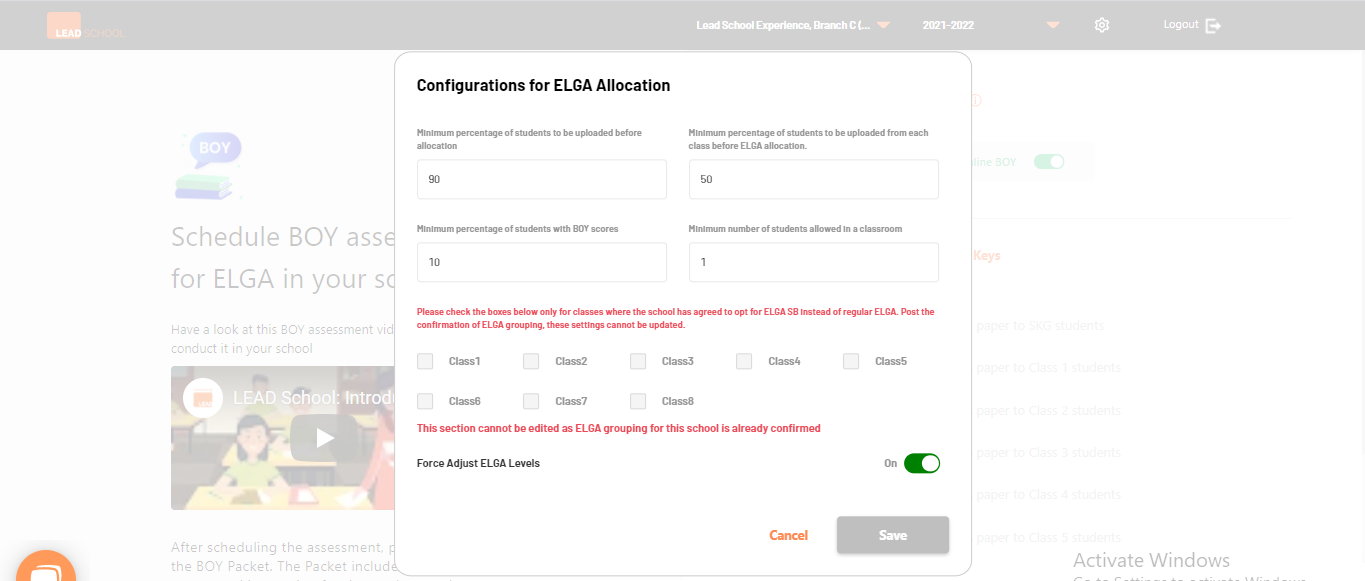
If the school is not able to meet the criteria, Schools excellence managers can make changes to the threshold using this option and proceed further with ELGA grouping.If the minimum requirement is not met, Nucleus will give you an error message next to the 'Continue' button explaining which thresholds need to be changed. In this case, click on the Settings button from the top right corner of the ELGA grouping page to access Configurations for ELGA Allocation panel.
This panel will allow you to make changes to the schools ELGA threshold. As per your preference make changes in the ELGA threshold and click on Save to save the changes.
Minimum perdcentage of students to be uploaded before allocation: Change the limit of total students required to confirm ELGA level. You can choose any number between 10-100.
Minimum percentage of students to be uploaded from each class before ELGA allocation:Change the limit of number of students uploaded against each classroom. You can choose any number between 0-100.
Minimum percentage of students with BOY scores:Change the threshold for students who have completed online / offline BOY for ELGA grouping. You can choose any number between 0-100.
Minimum number of students allowed in a classroom:Change the minimum number of students allowed in each ELGA classroom using this option. You can choose any number between 1-100.
Force Adjust ELGA Levels:Disable this option if you don’t want to adjust students to the nearest available ELGA level and assign the ELGA level based on the student’s BOY score.
Select ELGA state board course:Select classes which have opted for ELGA SB curriculum. All the active classes for the school eligible for ELGA will be shown on this panel.Once the ELGA grouping is confirmed, this section will be disabled and cannot further be edited. It will retain the selections made before the grouping is confirmed.
Note:Although ELGA SB can be enabled for any class using this feature, please ensure that you are selecting only classes from middle school only.
Click Continue to process further.
With the help of experience manager school can complete ELGA grouping. Based on ELGA grouping suggestions, school can add new classrooms by clicking Add/Update Classroom button.
Schools excellence managers have the ability to upload excel sheets from the ELGA grouping page to bulk update the ELGA class/ divisions of the students to move students to desired ELGA levels.
Note:Using bulk upload features you and even support teams won’t be able to move students to the ELGA level beyond the maximum permissible ELGA level for a particular classroom. In that case AEDs or above will have to do manual student movement from the Student Overview page.
Click on Download Student-wise ELGA Level Sheet option from ELGA grouping result page to download the ELGA allocation student list sheet.
Open the excel sheet and as required change the ELGA level and/or division from column D & E respectively. Once all changes have been made, save the file.
While saving the file make sure that the ELGA levels should be updated in the correct format. ELGA level should not be higher than the max permissible for the regular class. Also Except Column D & E no other column should be edited.
Click Upload Sheet for bulk ELGA update from ELGA grouping result page then select the saved ELGA allocation student list sheet and click Open.
ELGA group result page will now make required changes. Changes will reflect immediately on the result page.
Click Rerun Grouping so that the system can assign students to their respective classes again.
Click Continue to next step button to proceed further.