Main Menu and Navigations
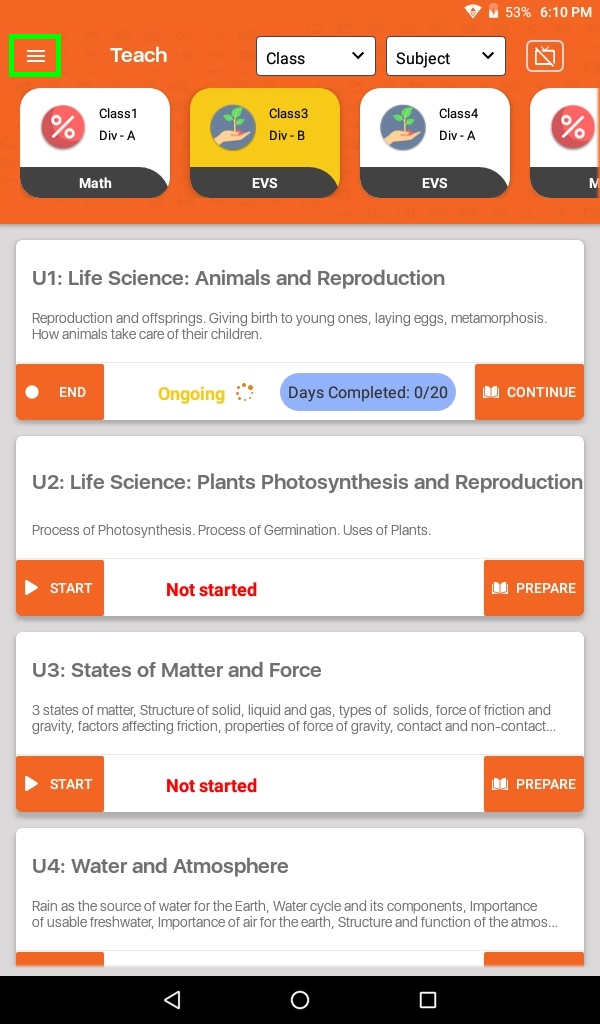
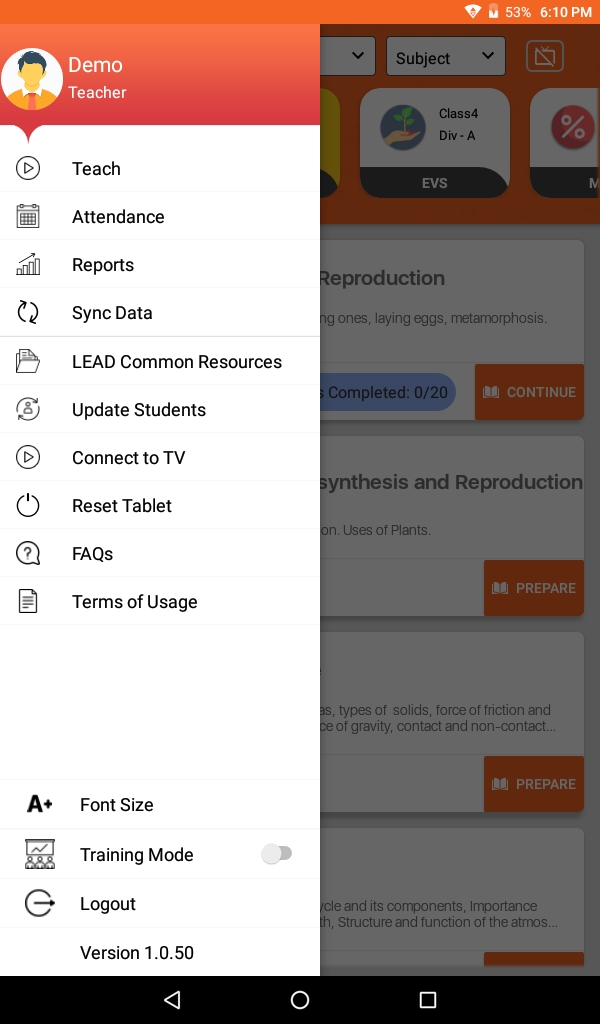
- On the left side of the screen, we have a Menu (≡) Click on the icon to access the Menu. The Menu contains many features that will help you in your day-to-day activities.
- Step 1: Tap on 3 Horizontal line on top left corner to open Menu
- Click on to go to teaching content
- To mark students attendance, click on Attendance
- Click on 🎢 to see Student Performance Reports.
- Click on to Sync your Teacher App data.
- LEAD Common resource will help you to understand the Teacher Apps features.
- Click on Update Student if student data is updated on the Nucleus. Whenever changes happen on the Nucleus in the student database you need to update the data on the Teacher App as well.
- Click on Connect to TV when you want to connect the tab to TV.
- Click on Reset Tablet to see changes on Tab, if there are changes made on Nucleus.
- The FAQ will help you to resolve your basic problems.
- Terms of Usage is an agreement the user has to accept before he/she starts using the Teacher App.