Using this module, the school can setup & configure fees collection for students.
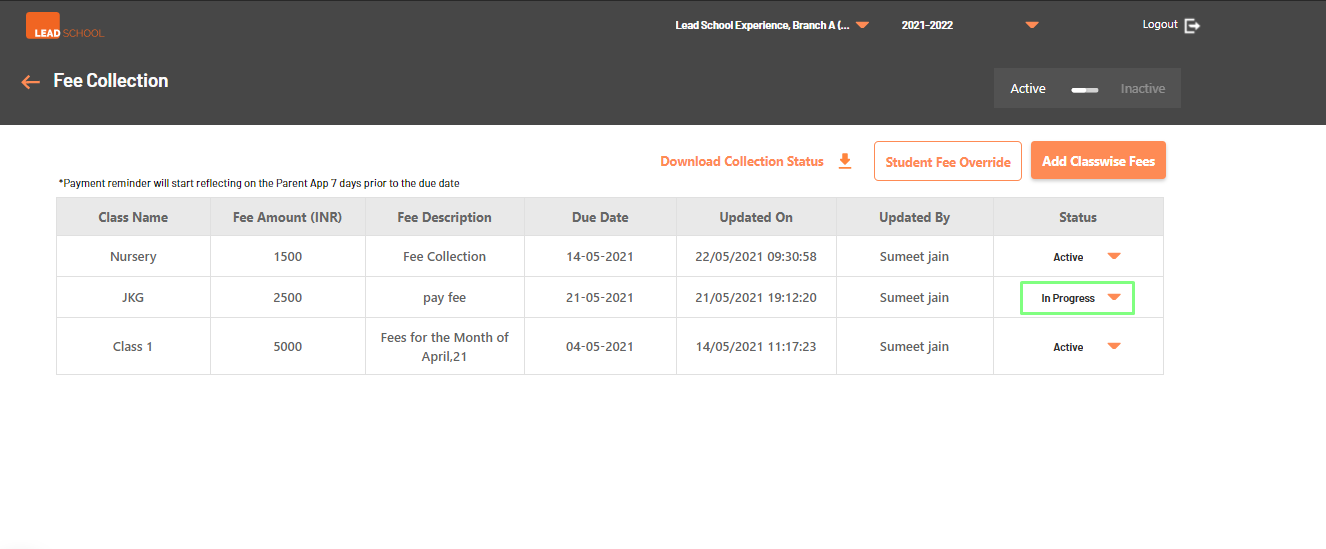
To access this module, navigate to School Administration > School Setup > Fee Collection.
By default, Fee collection is active for all schools however class-wise fee details are not configured.
To enable or disable Fee collection for the entire school, use Active-Inactive toggle.
Click the Add Classwise Fee button to configure class-wise fees.
Select class from class selection drop-down. Enter fees amount, fees due date and fee description in their respective field.
Click on Save as draft to set up the fee collection for the mentioned class. Follow the same process for remaining classes.
Based on student fee status and due date, parents will get a notification regarding fee collection on their LeadSchool parent app.
Once class-wise fee collection is saved as draft, the status will be set as In Progress by default.
When fee collection status is in progress, parents will not receive any payment notification.
To start sending payment notifications for a required class, change the status of fee collection to Active.
To stop sending notification and disable online fee collection for a required class, change status of fee collection to Inactive for the mentioned class.
When you try to change the status of class fee collection, you get a confirmation box. Click Confirm to change status. Click X to cancel.
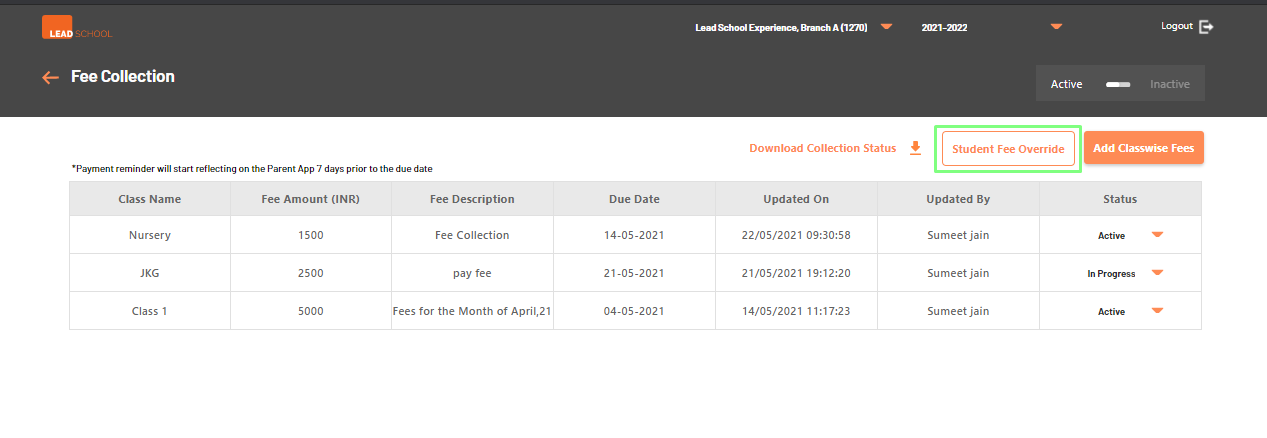
Schools can also change Fee collection status & amount a particular student or few students by clicking the Student Fee Override button.
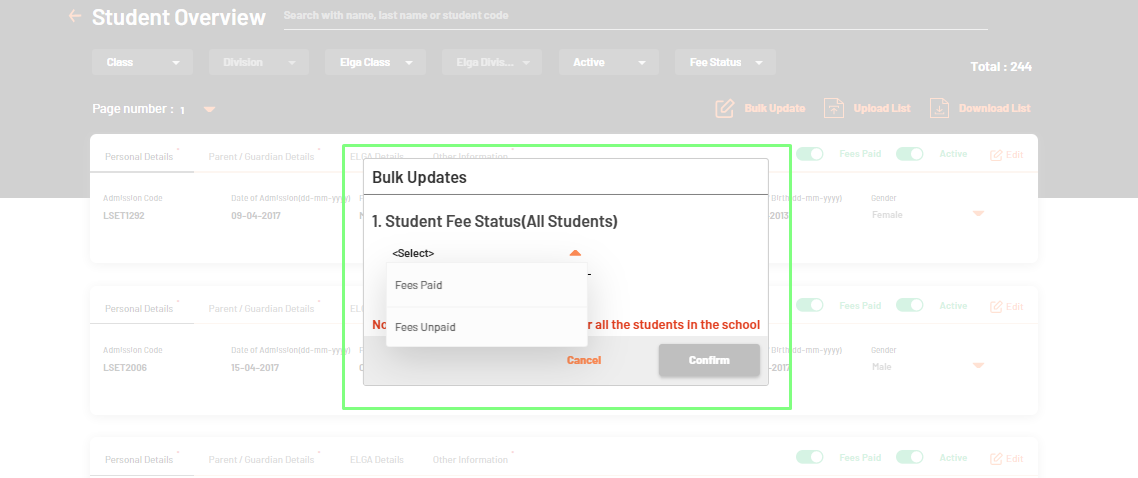
Schools can also change the fee status (Paid / Unpaid) of the entire school if required.
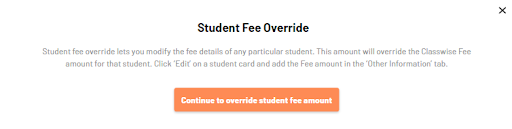
When clicked, the Student fee override button, nucleus will give a prompt stating that any changes on student level will override the class-wise fee
collection settings for that student as mentioned below. Click Continue to override student fee amount option to continue or else, click X to go back.
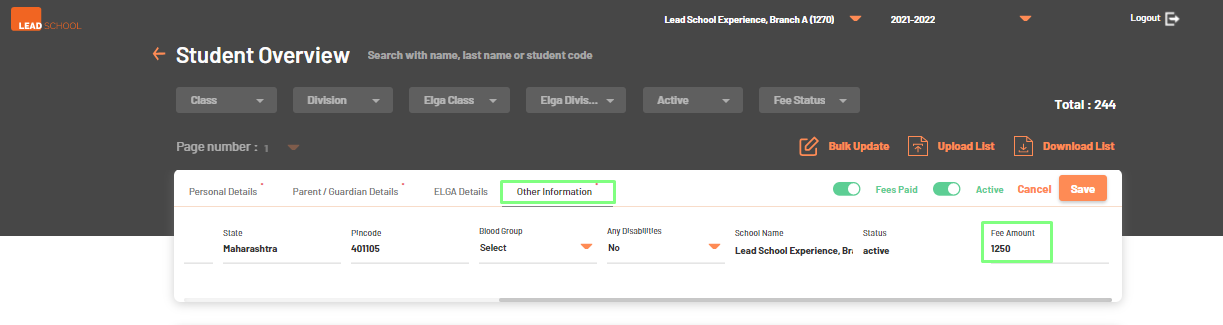
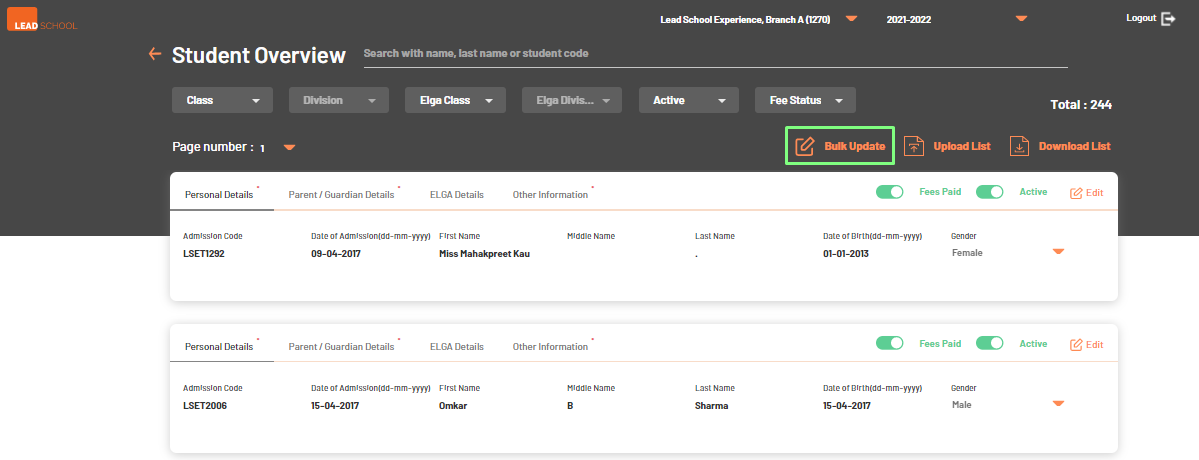
Student fee override option will open a new tab and open the Student Overview page.
Schools can search and navigate to the student they want to change the fee amount. Click Edit next to the student and select Other Information.
In the Fee Amount section, enter the required amount and click Save.
The amount mentioned here will override the amount mentioned on the fee collection page for the mentioned student.
The school can also change the Fee Status of a particular student by changing Fees Paid toggle of a student.
To change the Fee status of all students at one time, click on Bulk Update and change status