Homequiz
- To access the quiz, tap on Home QUIZ from Menu. Quizzes help students to practice what they learned and also enable personalized learning for the student.
- When a new quiz is available, the Quiz tile will show a notification dot with the number of pending quizzes.
- When the Quiz option is accessed for the first time, students will get a welcome page explaining how the quiz module works. Tap Skip to ignore the welcome page.
- Swipe right to see the next screen and then click Get Started to proceed further.
- Now students will see a quiz dashboard with all quizzes sorted subject wise. The number of available quizzes for each subject will be mentioned as a notification dot on top right side of the subject tile as shown below.
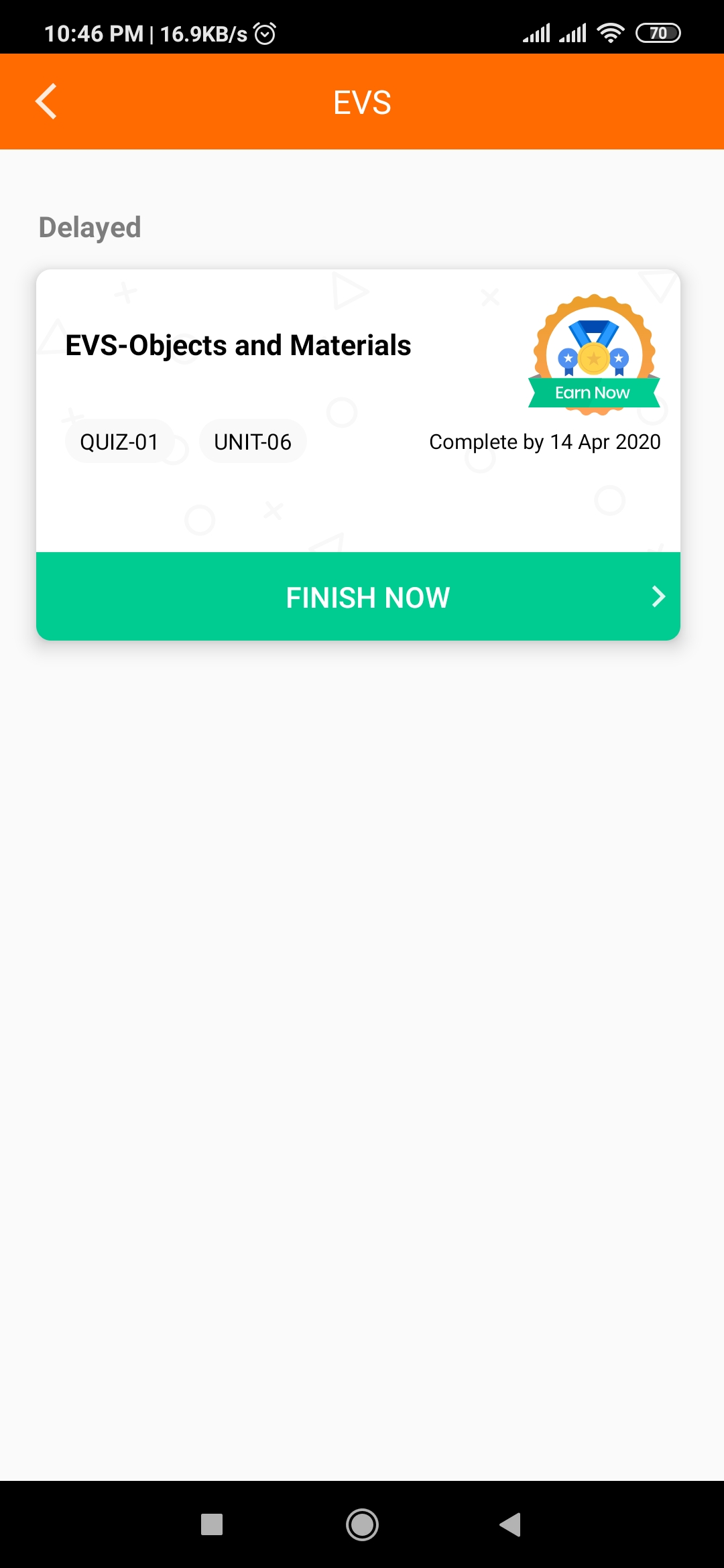
- Tap on the subject to view all available quizzes and start it. Then tap on the FINISH NOW button.
- Quiz related instructions will be visible at the beginning of the quiz. Read the instructions carefully and tap the Got it. Let's Start button.
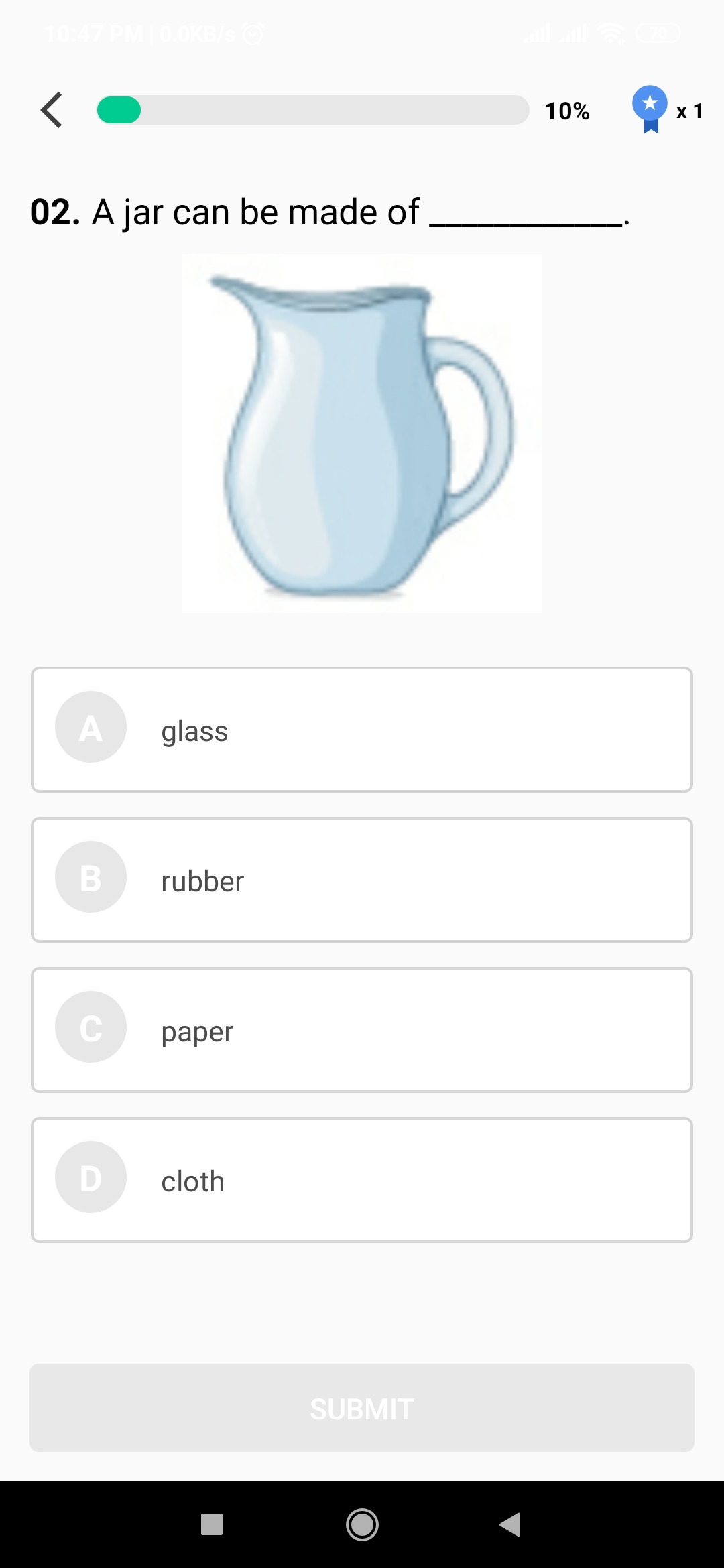
- Complete the quiz by selecting the answer from the list and tap Submit.
- Once a student taps submit, the app will show an explanation regarding the answer. Tap the Next Question button to view the next question.
- Once all questions have been answered, the app will show a result page as shown below. Tap Go to Dashboard to go back to the main Quiz dashboard page.